
Inspections
Inspecting with the app
The app is built for the scaffold and the crawl space: photograph, speak, keep moving. You do not have to sort or type anything along the way. Finish the inspection and your work is ready on your computer.
Before you start
Install the Kadero app and sign in with the same account as on your computer. The projects you created are there straight away.
Choose your project and you land on the capture screen.
Photograph first
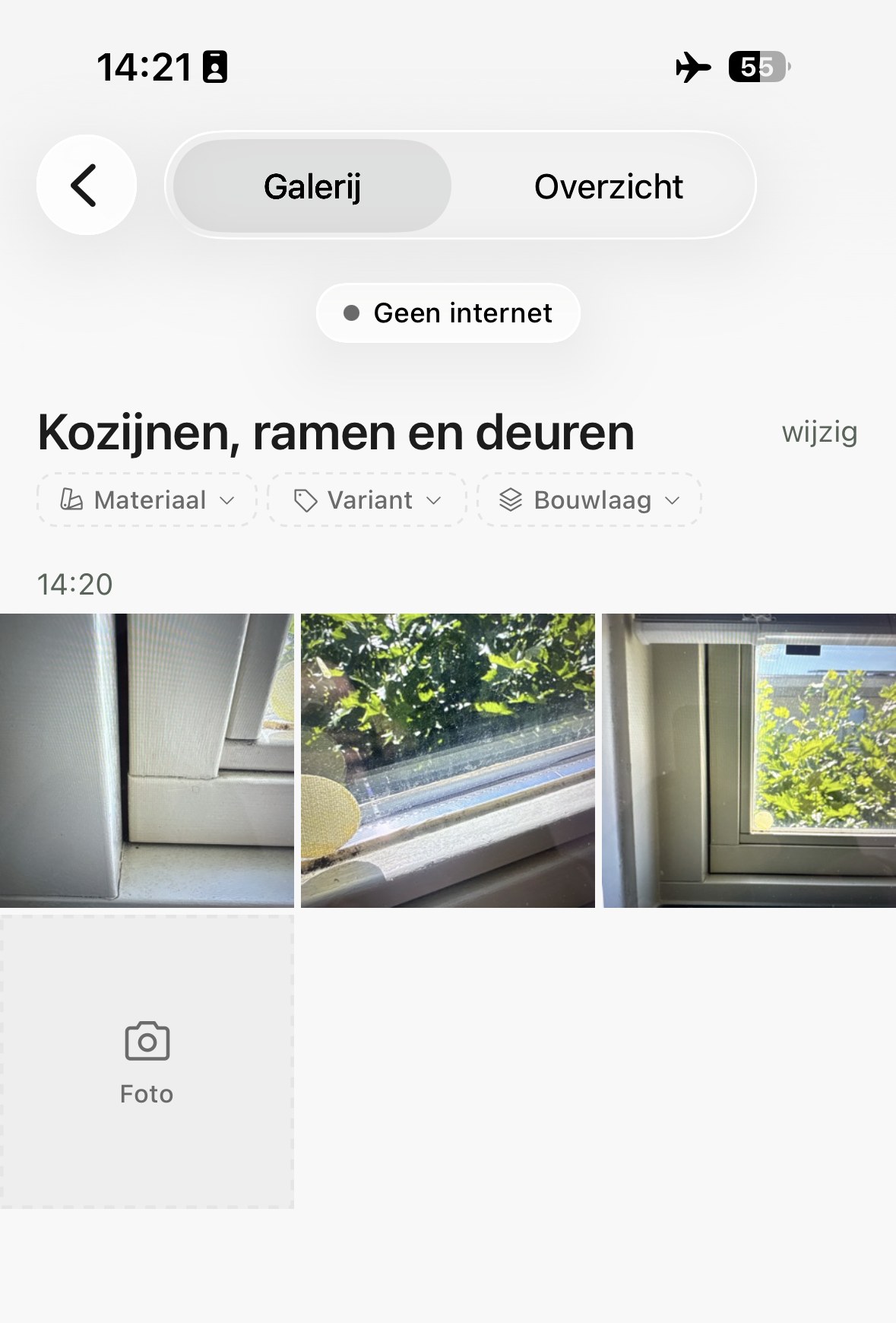
Tap the photo tile and the camera opens. Photograph what you see, as many photos as you like.
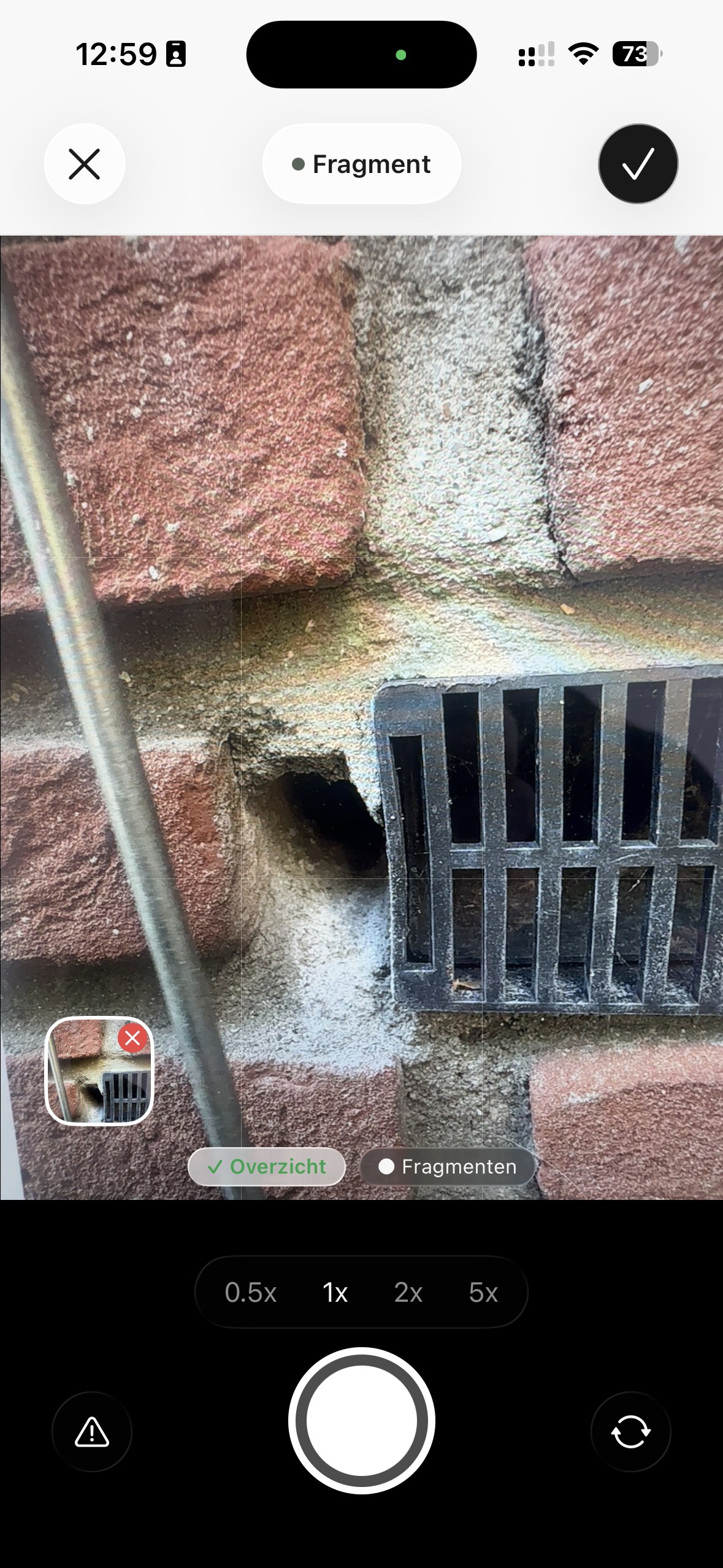
Close the camera and Kadero recognises which element it is and files the photos under it. If it is certain, it is there immediately. If it is unsure, it asks you. And if it is wrong, you change it yourself with wijzig or Kies element.
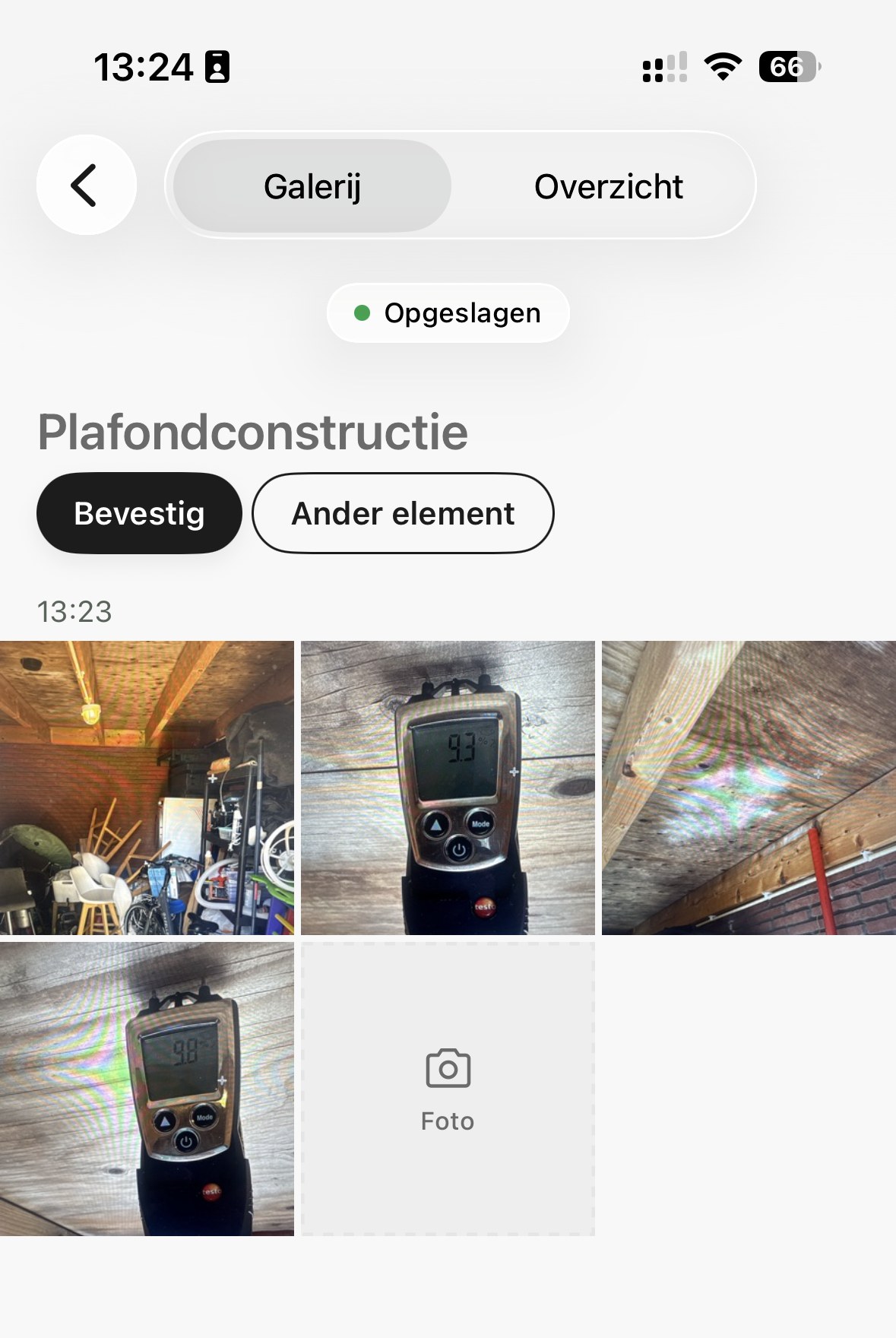
That is how you work through the property: photograph, walk on, photograph.
Overview, fragment and defect
Your first photo of an element is the overzichtsfoto: the whole thing in frame. That is what Kadero recognises the element from. Everything after it is a fragment: the rest of the element covered systematically. At the top of the camera you see which of the two you are taking.
If a fragment shows something that is not right, switch on gebrek markeren at the bottom left. Every photo you take after that is marked as a defect, until you switch it off again. That way it is clear later which photos show the problem and which simply record the state of the element.
The button only appears after your overview photo, because that one shows the element, not the defect. If you forget along the way it is no problem: tap a photo and choose Markeer als gebrek. Removing it works the same way.
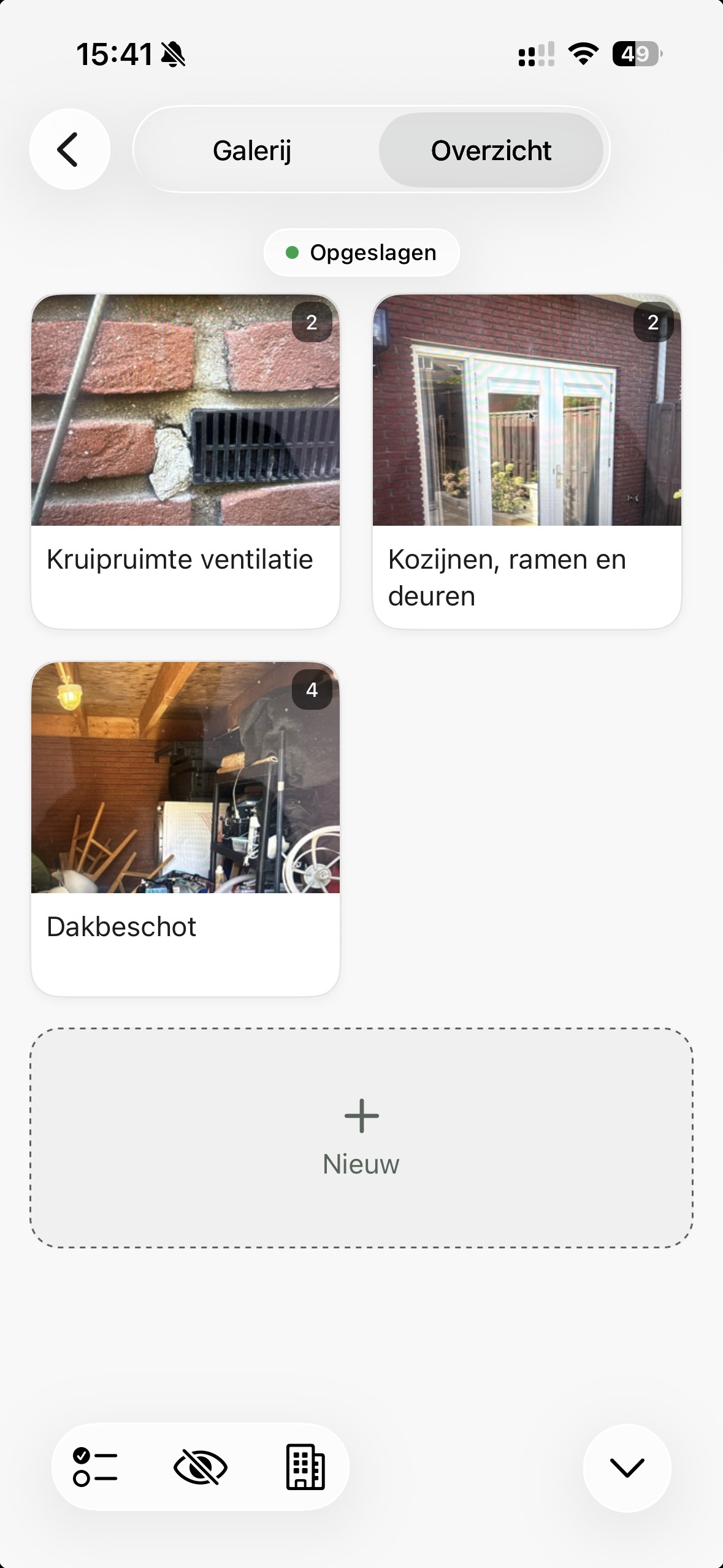
Under Overzicht you see what you have captured so far, with the number of photos per element.
Working per room
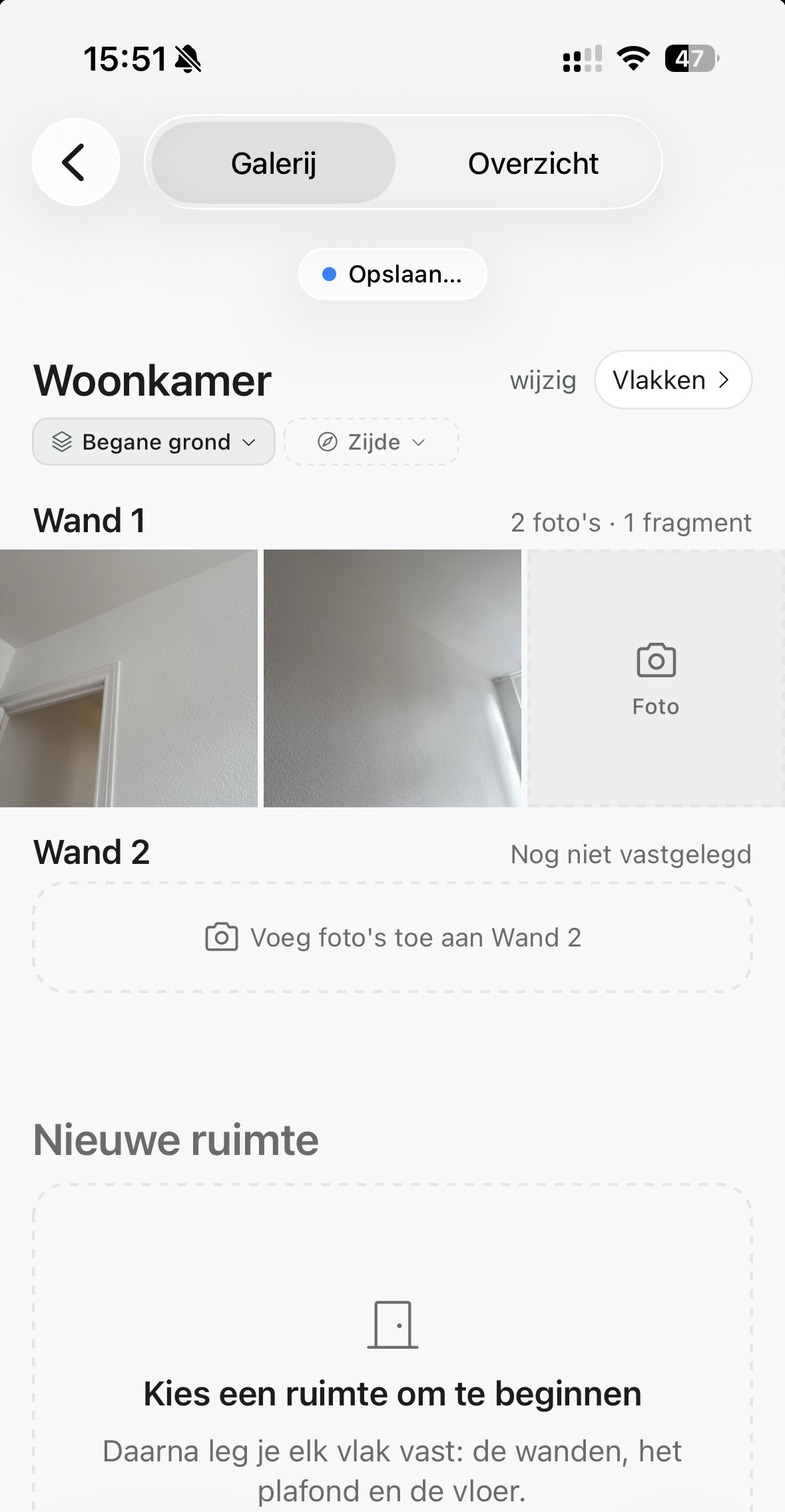
For a baseline survey or a delivery inspection you work per room rather than per element. Choose a room first. Then you record each surface: the walls, the ceiling and the floor.
Per surface you see what you have photographed and what is still open. Once a surface is done, the app sets up the next one for you.
Pointing something out on a photo
Tap a photo to see it large. There you can mark on the photo what it is about and add a caption. It is optional, and it can always be done later, on your computer too.
Without a signal
The app keeps working without a connection. Your photos and recordings stay on your phone and go along by themselves as soon as you have a signal again.
Only recognising an element does not happen offline. The app catches up as soon as you are back online. At the top you see the status of your connection.
Review & opnemen
When you are done photographing, choose Afronden. You land in Review & opnemen: the app walks you through your capture, part by part.
Per part you see your own photos. Speak what you saw: the microphone is ready, typing is not needed. Kadero writes your words out into a finding and suggests a condition grade and an advice. If it is right, you move on to the next one.
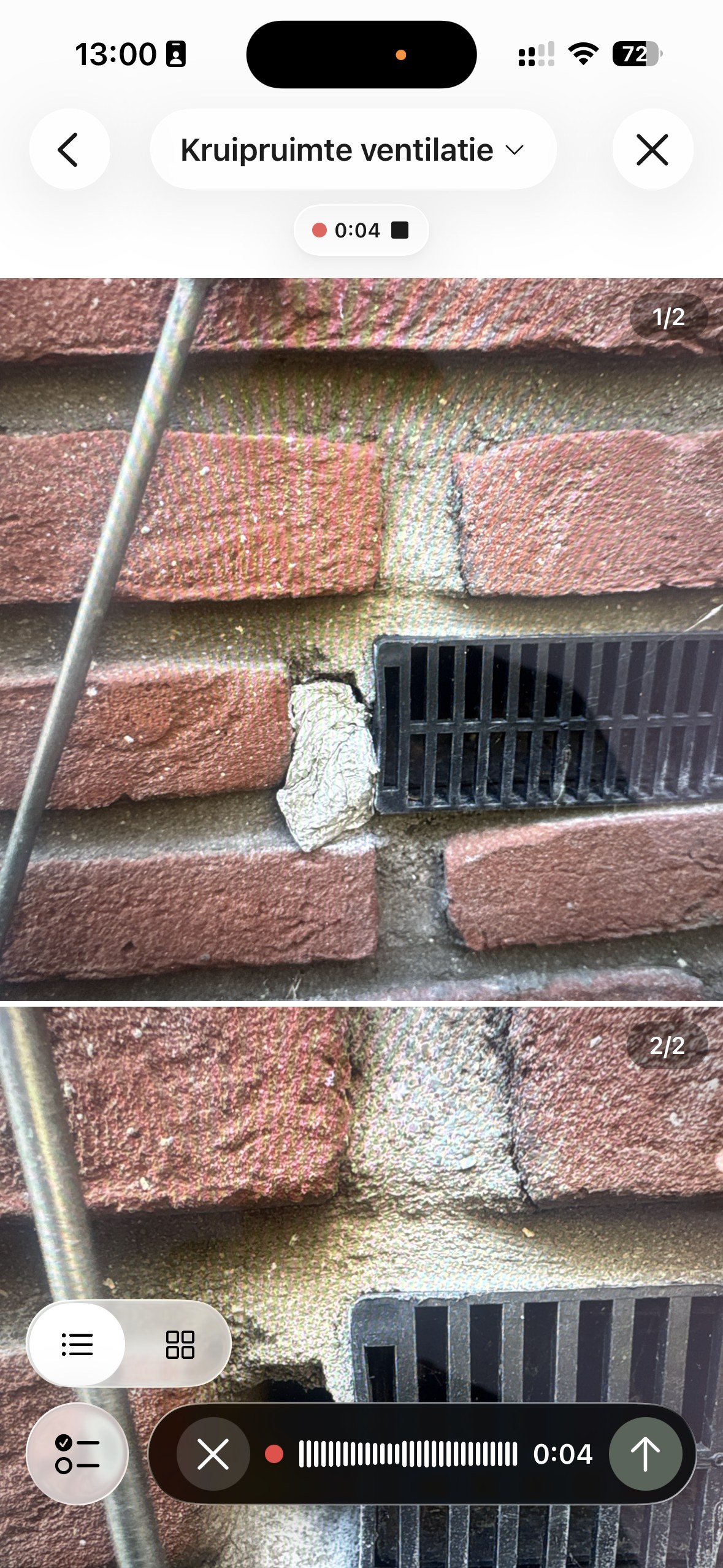
You do not have to speak anything here. Choose Volgende and you move on to the next part. What you skip you write later on your computer, in the report editor, with your photos already there.
What you did not inspect
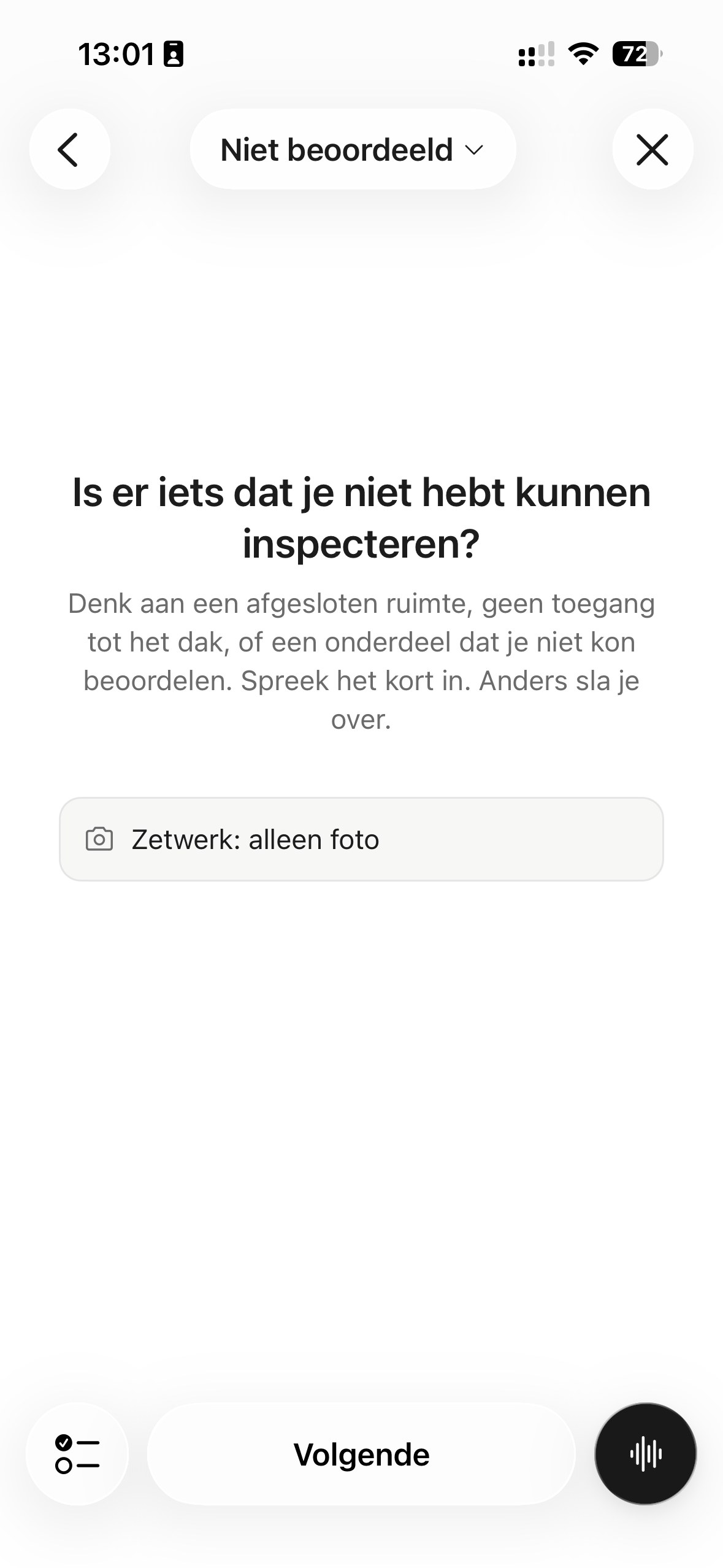
At the end the app shows which parts were not covered. You can still record them.
Finishing
Finish the inspection and your work goes to your computer. There you complete the report: read the texts, add costs, finish.
See Editing a report.