
Getting started
Getting started
Kadero takes you from what you see at a property to a finished report for your client. This guide walks that route once.
There are two ways
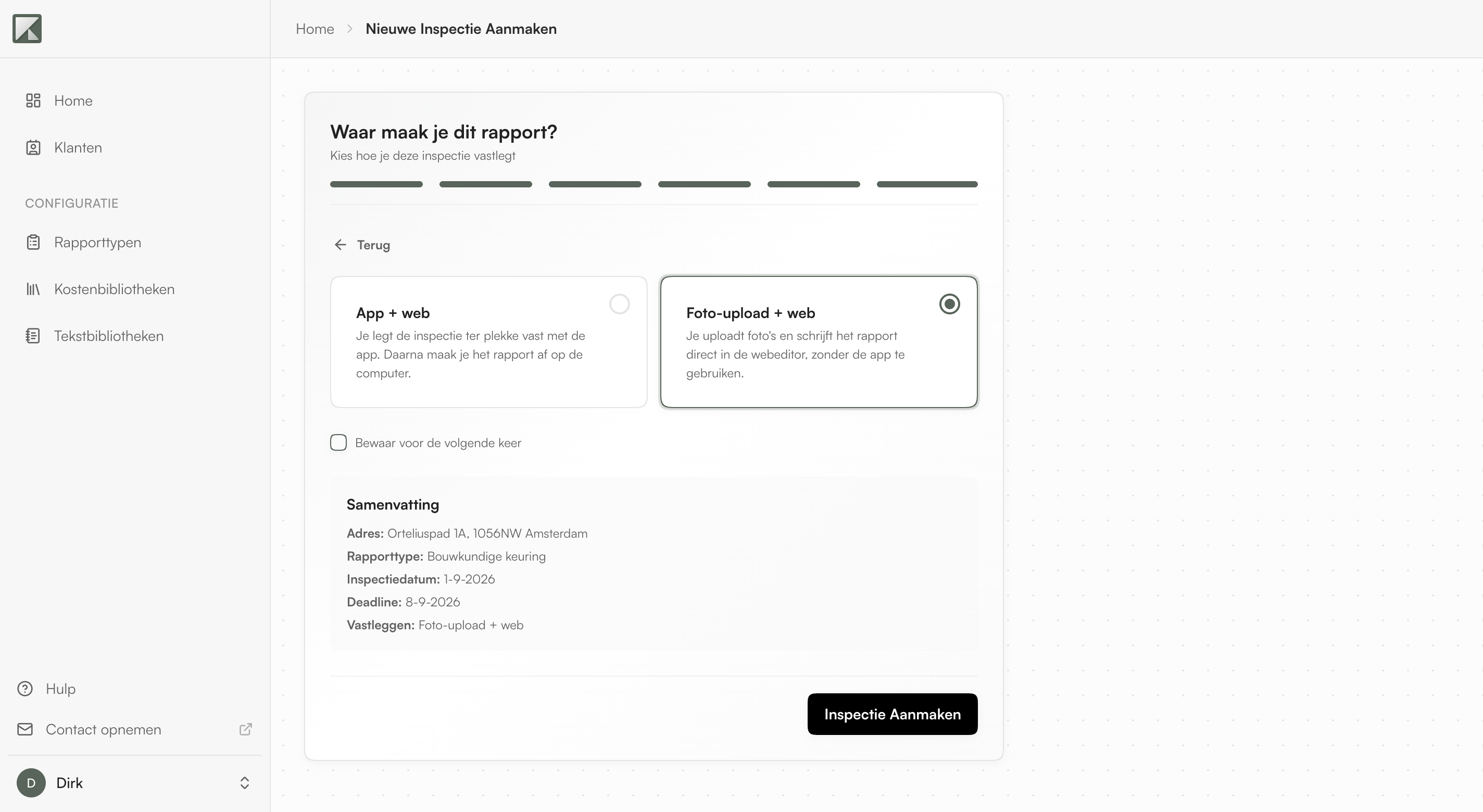
When you create a project, Kadero asks where you will write the report. You choose per project.
- App + web: you capture the inspection on site with the app on your phone, then finish the report on your computer.
- Foto-upload + web: you photograph on site the way you always do, and write the report on your computer afterwards.
Both end up in the same place: the report editor. Choose what fits your working day, you are not tied to either.
Creating a project
Choose Nieuwe Inspectie and walk through the steps.
- Address: type the address of the property. Kadero searches the BAG as you type.
- Property information: construction year, floor area and use come from the BAG automatically. You adjust them later under Projectinfo.
- Report type: a building survey, an MJOP or a baseline survey, for example. You only see the report types you use yourself. You manage those under Rapporttypen.
- Client: pick an existing client or create a new one.
- Schedule: the inspection date and the deadline. Kadero fills in a suggestion you can change.
- Where are you writing this report? The choice above. Tick Bewaar voor de volgende keer if you always work this way.
The project is then ready. The report starts empty: what you capture or sort in determines what goes into it.
On site: inspecting with the app
If you work with App + web, install the Kadero app on your phone and sign in with the same account. Your project is waiting there.
On site you photograph and speak what you see. The app keeps working without a signal and syncs as soon as you are back online. Finish the inspection and your work is ready on your computer.
The full explanation is in Inspecting with the app.
On your computer: working from your photos
If you work with Foto-upload + web, open the Foto's tab and put your photos in at once. You drag them to the right element in the report structure, or let Kadero make a first pass.
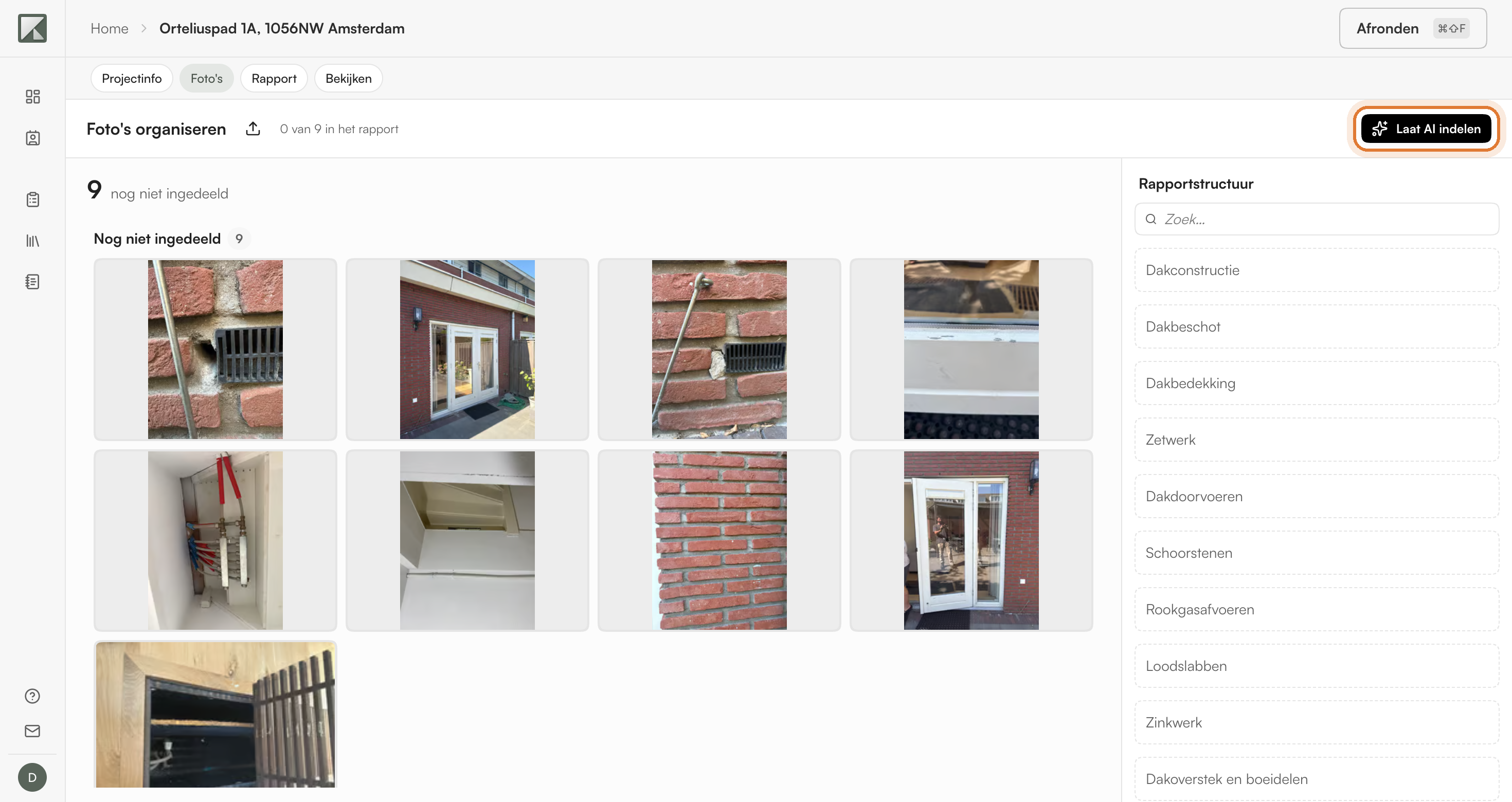
The full explanation is in Building a report from photos on your computer.
Finishing the report
Under Rapport you finish the report: read or write the texts, record condition grades and costs, put photos in their place. Under Bekijken you see the report as your client receives it.
If everything is right, you finish it and Kadero produces the final report. You can always reopen it afterwards, and earlier versions stay saved.
See Editing a report.
Make the report yours
You set your logo, your colours and your own standard texts once. Every report you make after that follows your house style.